Deploy with Pulumi Button
The “Deploy with Pulumi” button lets you easily create new Pulumi projects from the browser. You can embed the button in README files within GitHub repositories or gists, blog posts, or other web pages.
For example, you can click the following button to configure and create a new empty JavaScript project:

To create a “Deploy with Pulumi” button:
- Include optional template metadata in your
Pulumi.yaml. - Create a button in Markdown or HTML.
Preparing your Template
The Pulumi button works with project templates hosted in public GitHub repositories or gists. A template is a Pulumi project that has the required Pulumi.yaml file describing the project. The project template can be in the root of the GitHub repository, or within a subdirectory. Multiple projects can be hosted within subdirectories of a single repository.
The Pulumi.yaml file can optionally contain a template section, which typically includes a config section for specifying required config values for the project. Each config value can have a description and a default value. Config values can also have a secret property, which can be set to true to indicate that it is a
secret.
name: my-aws-project
runtime: nodejs
description: My AWS project description
template:
  config:
    aws:region:
      description: The AWS region to deploy into
      default: us-west-2
    myAccessToken:
      description: My access token
      secret: true
The above snippet includes an aws:region config value with a default value of us-west-2, as well as a myAccessToken config value that is a secret without a default value.
Testing
You can test your template via the Pulumi CLI or a web browser.
CLI
$ pulumi new https://github.com/pulumi/examples/aws-js-s3-folderBrowser
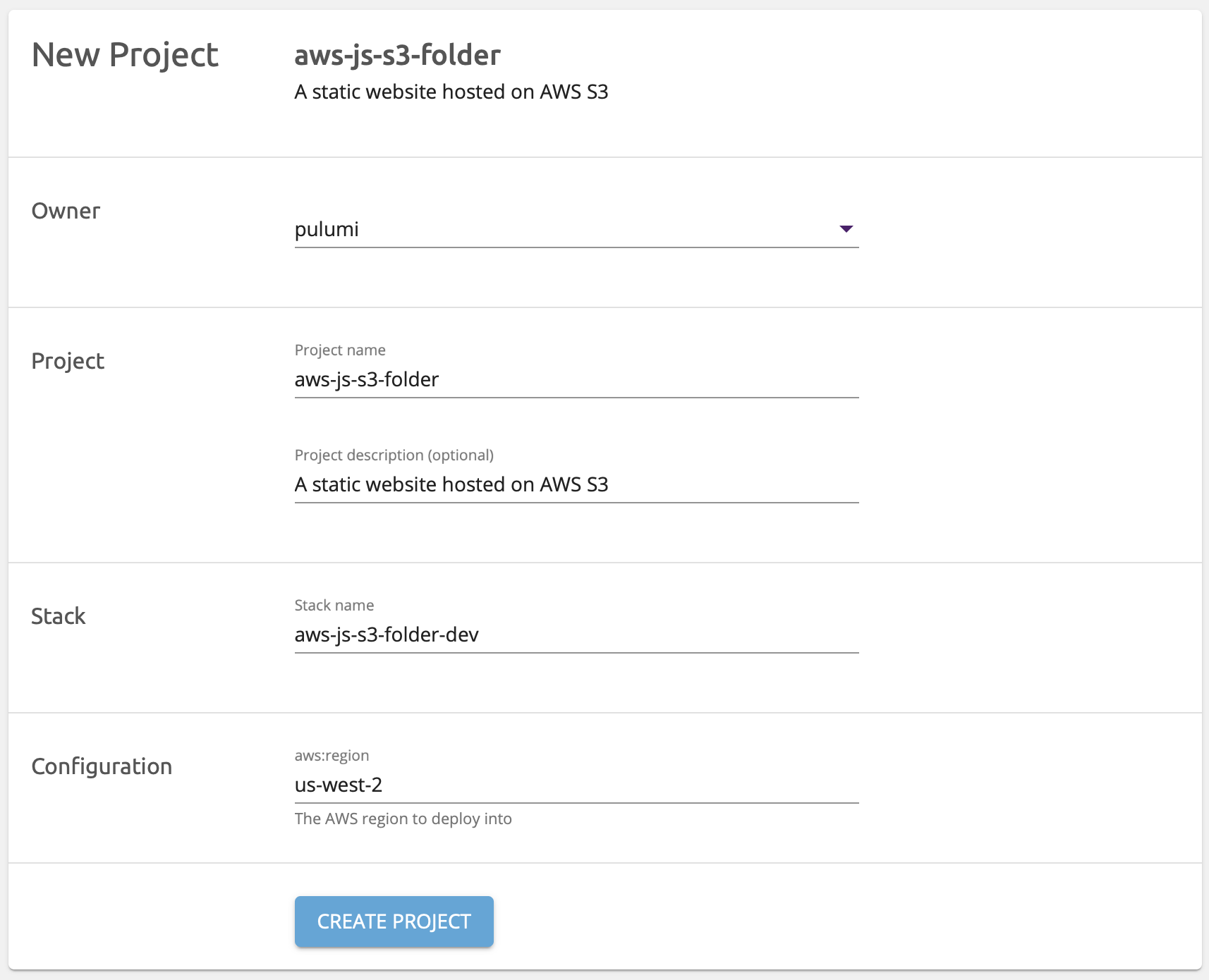
https://app.pulumi.com/new?template=https://github.com/pulumi/examples/aws-js-s3-folder
Creating a Pulumi Button
After you’ve verified your project template works as expected, you can add a button to the README in your repository or gist.
There are two ways to reference the project template:
Implicitly without a
templateparameter. For public GitHub repositories or gists, if you don’t specify atemplateparameter, Pulumi will infer the URL to the template using the HTTPrefererheader that is sent when the button is clicked. This makes the button stable under forks and branches of the repository.Explicitly specifying a
templateparameter that points to the project. This is useful for buttons that aren’t inside a repository, such as in blog posts or other web pages, or when the README isn’t in the same directory as the project template.
Implicit Templates
If you’re embedding the button in the README of a public GitHub repo or gist, Pulumi will automatically infer the URL to the template from the referer header that is sent when the button is clicked.
This is convenient because it eliminates the need for hard-coding the specific repository URL into the button, allowing forks and branches of the repository to work without needing to change the button’s template parameter.
Here’s an example in Markdown:
[](https://app.pulumi.com/new)Or, the equivalent HTML:
<a href="https://app.pulumi.com/new">
  <img src="https://get.pulumi.com/new/button.svg" alt="Deploy">
</a>
A button.png is also available.
Explicit Templates
Alternatively, you can explicitly specify the template parameter.
Here’s an example in Markdown:
[](https://app.pulumi.com/new?template=https://github.com/pulumi/examples/aws-js-s3-folder)Or, the equivalent HTML:
<a href="https://app.pulumi.com/new?template=https://github.com/pulumi/examples/aws-js-s3-folder">
  <img src="https://get.pulumi.com/new/button.svg" alt="Deploy">
</a>
Button Image
Pulumi provides both SVG and PNG versions of the button image at the following URLs:
https://get.pulumi.com/new/button.svghttps://get.pulumi.com/new/button.png
Custom Git Branches
You can use a fully qualified GitHub URL with the template parameter to reference the template at a specific Git branch, tag, or commit:
https://github.com/pulumi/examples/tree/master/aws-js-s3-folder